
You click Export on a Hootsuite Analytics report expecting one file. What downloads is a zip archive, or an email link to one, with the numbers split across several CSVs by metric type — not the single clean table you'd hand a client. Here's what's actually in it and the shortest path from that zip to a finished report.
Getting the export in the first place
The export lives on the report itself: open Analytics, build or open the report you want, hit Export, and pick a format. PDF and PPTX are available on every plan for overview reports. CSV and XLSX — the formats you'd actually want for a report you're rebuilding yourself — are gated to Advanced, Business, and Enterprise plans. If you're on a lower tier, the export button is there but the raw-data formats aren't, and the workaround is a PDF you'd have to retype.
What's actually in the zip
CSV exports come back as a zip with a separate file per metric type rather than one flat table. Table visualizations cap what displays on screen at 100 posts, but the actual export in the file goes further — Hootsuite's own docs put the ceiling at 1,000 posts for Amplify metrics and 10,000 for everything else, so the on-screen table understating your post count doesn't mean the export did too.
The separate CSVs also aren't the same shape as each other. Some are post-level — one row per post, metrics like reach and impressions beside it. Others are daily page-level rollups — one row per day, metrics like page impressions and page likes. Mixing the two into one table before you've noticed they're different grains is the fastest way to double-count a month.
The plan wall CSV runs into
Worth knowing before you promise a client a certain format: Standard and lower plans can't schedule recurring exports at all — Advanced and Enterprise can set up a weekly or monthly email delivery, Standard can't. If your workflow depends on a report landing in your inbox automatically every month, that's a plan decision, not a settings one you can flip yourself.
Turning the zip into one report
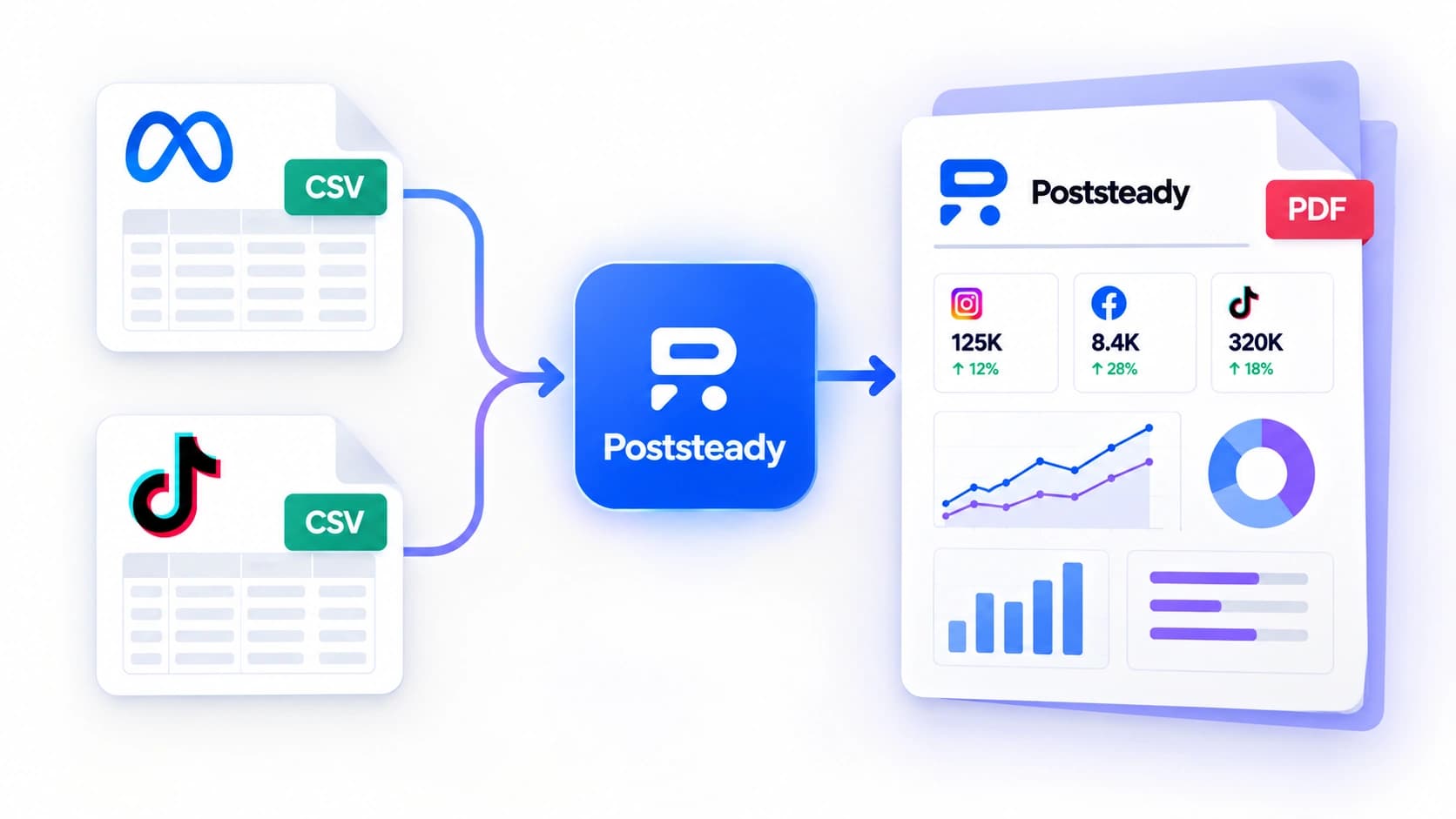
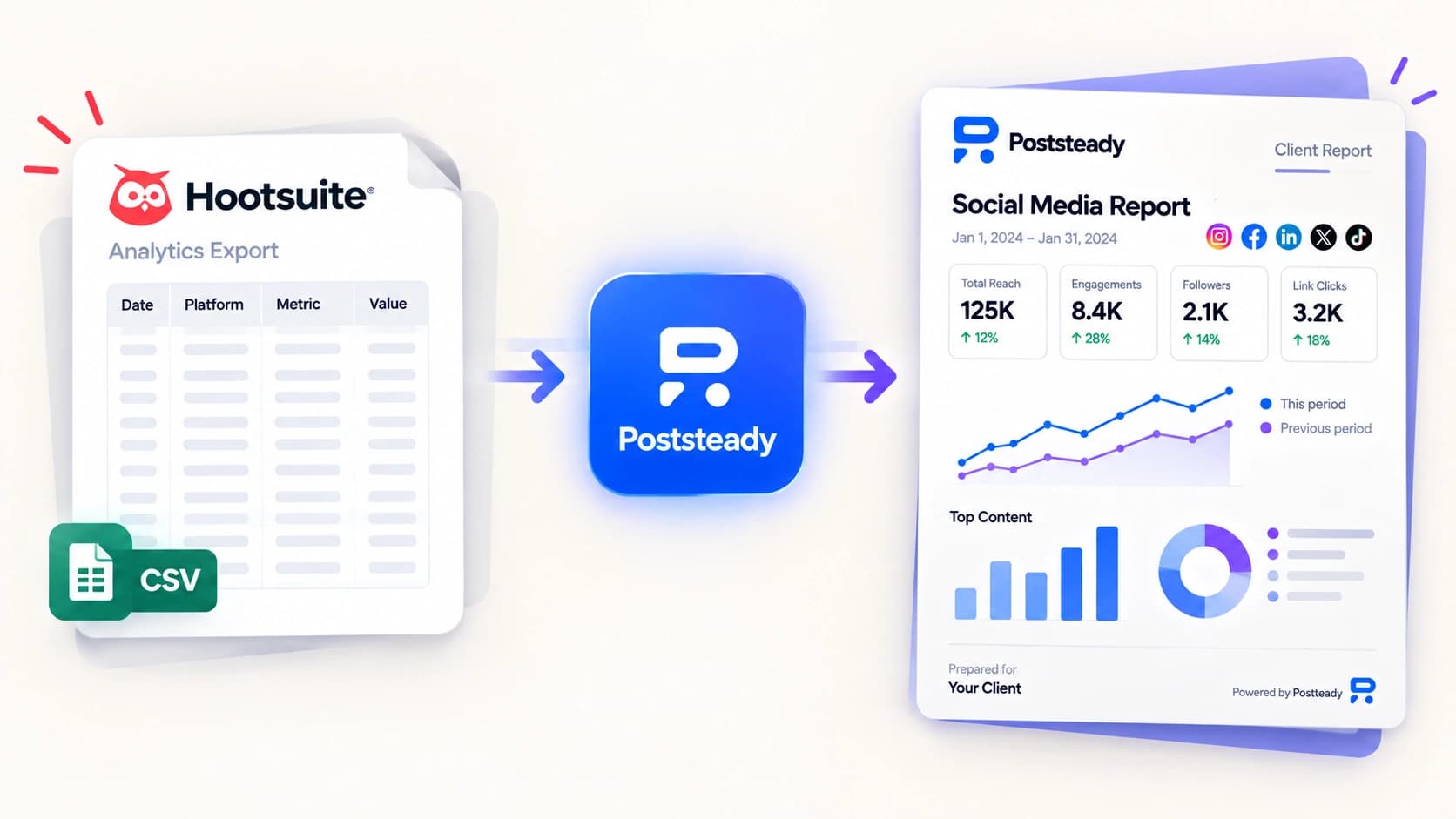
This is the part nobody's documentation covers, because it isn't Hootsuite's job to: you've got several CSVs out of one zip, they don't share a shape, and a client wants one PDF with a number they can trust and your logo on it. Poststeady takes the individual files from the zip directly — upload the ones with the metrics you actually report on, skip the rest.
Hootsuite isn't one of the seven export shapes Poststeady fingerprints by name in lib/reports/auto-map.ts, so a Hootsuite file lands wherever its columns point: a post-level file carrying "Post reach" and "Post impressions" gets read as Meta Business Suite, since that's the same column-name pattern the detector looks for to recognize a Meta export, and "Post impressions" is an exact alias in the mapping table while "Post reach" is caught by the fuzzy fallback on "reach". A page-level daily file with "Page likes" and "Page impressions" maps those too — "Page likes" is an exact alias for followers, "Page impressions" catches the same fuzzy match on "impressions". Either case you confirm the platform on the upload step — one click — rather than trusting a guess.
From there it's the same flow as any other export: confirm the mapping once, review the numbers, and you get a three-page PDF — executive summary, platform breakdown, and a written recommendations page you can edit before it goes out. The zip full of differently-shaped CSVs stops being your problem the moment the columns are mapped.
Upload your Hootsuite export
Drop in the CSVs from the zip and get a branded three-page report. Free for two reports a month.